It tests both networks.
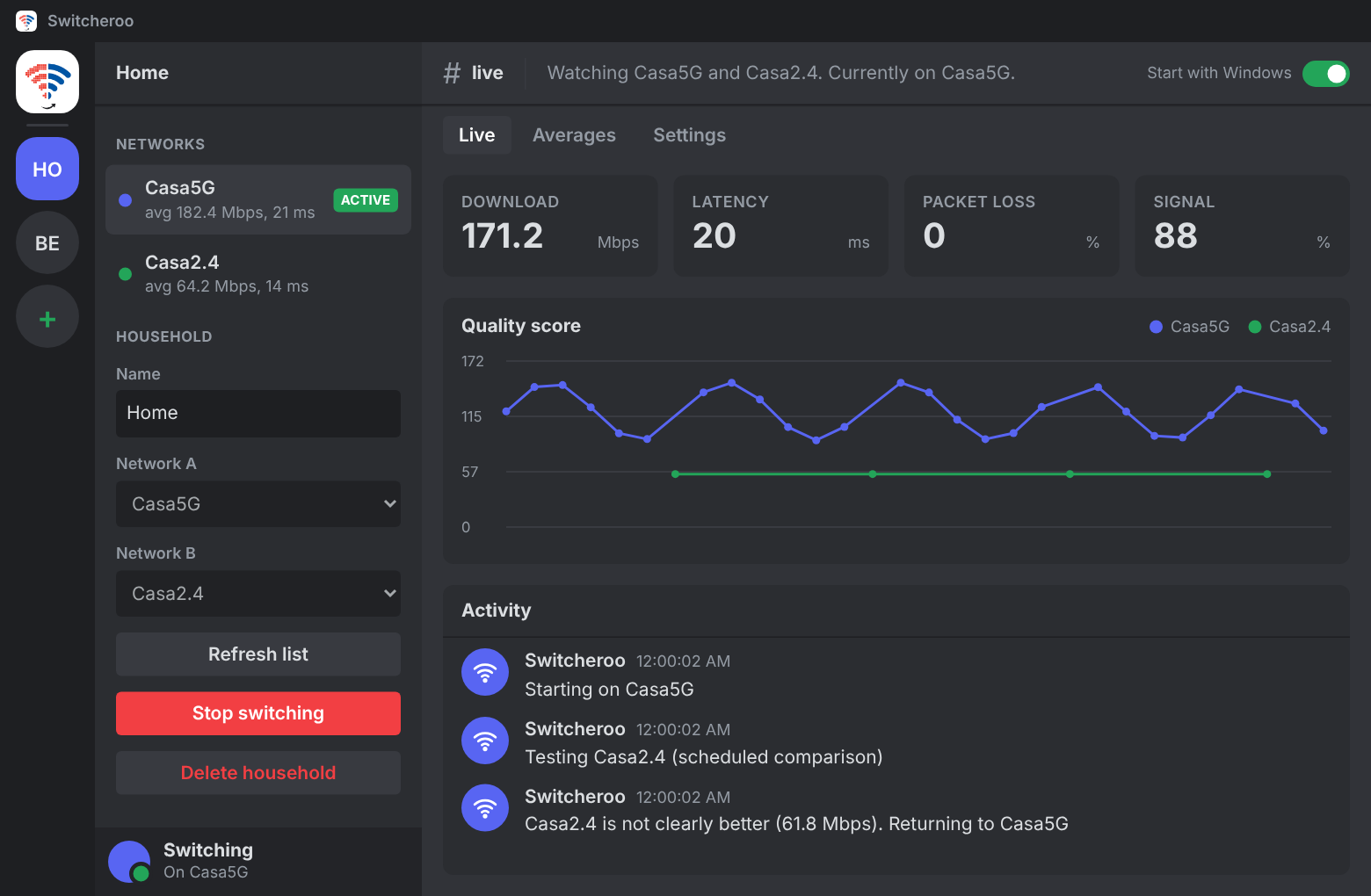
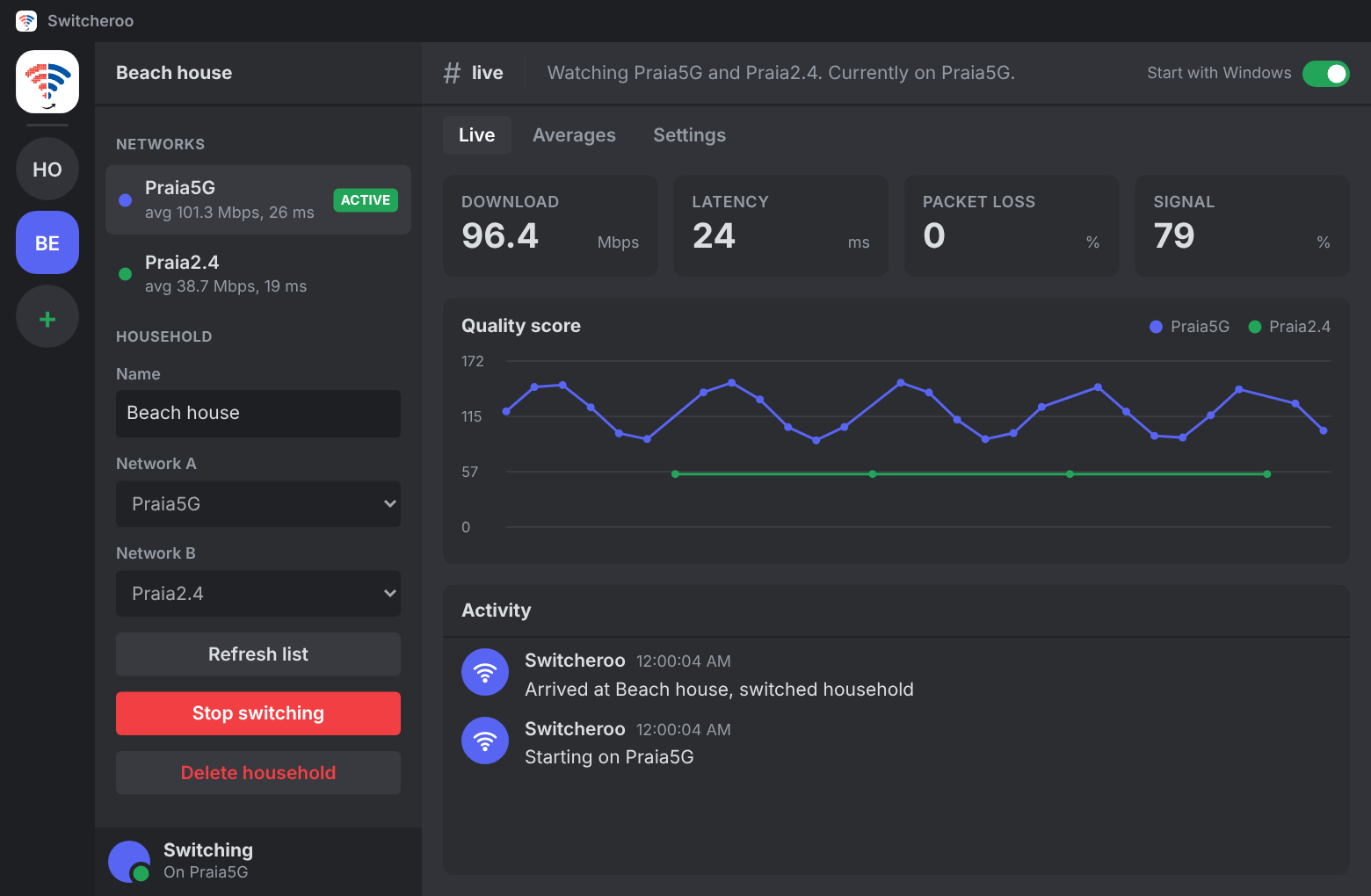
Every 30 seconds Switcheroo measures speed, latency and packet loss on the network you are on. Every 4 minutes it visits the other one.
 Switcheroo
Two networks. One that wins.
Switcheroo tests your 5G and 2.4G networks in the background and moves your PC to the better one, so you never open Wi-Fi settings again.
Free and open source. Built for Windows 11. Updates itself.
Every 30 seconds Switcheroo measures speed, latency and packet loss on the network you are on. Every 4 minutes it visits the other one.
The other network has to score 25 percent higher to win, so you are not bounced back and forth over a tiny difference.
If your connection suddenly falls below 60 percent of its recent average, Switcheroo tests the other network right away. A switch takes a few seconds.
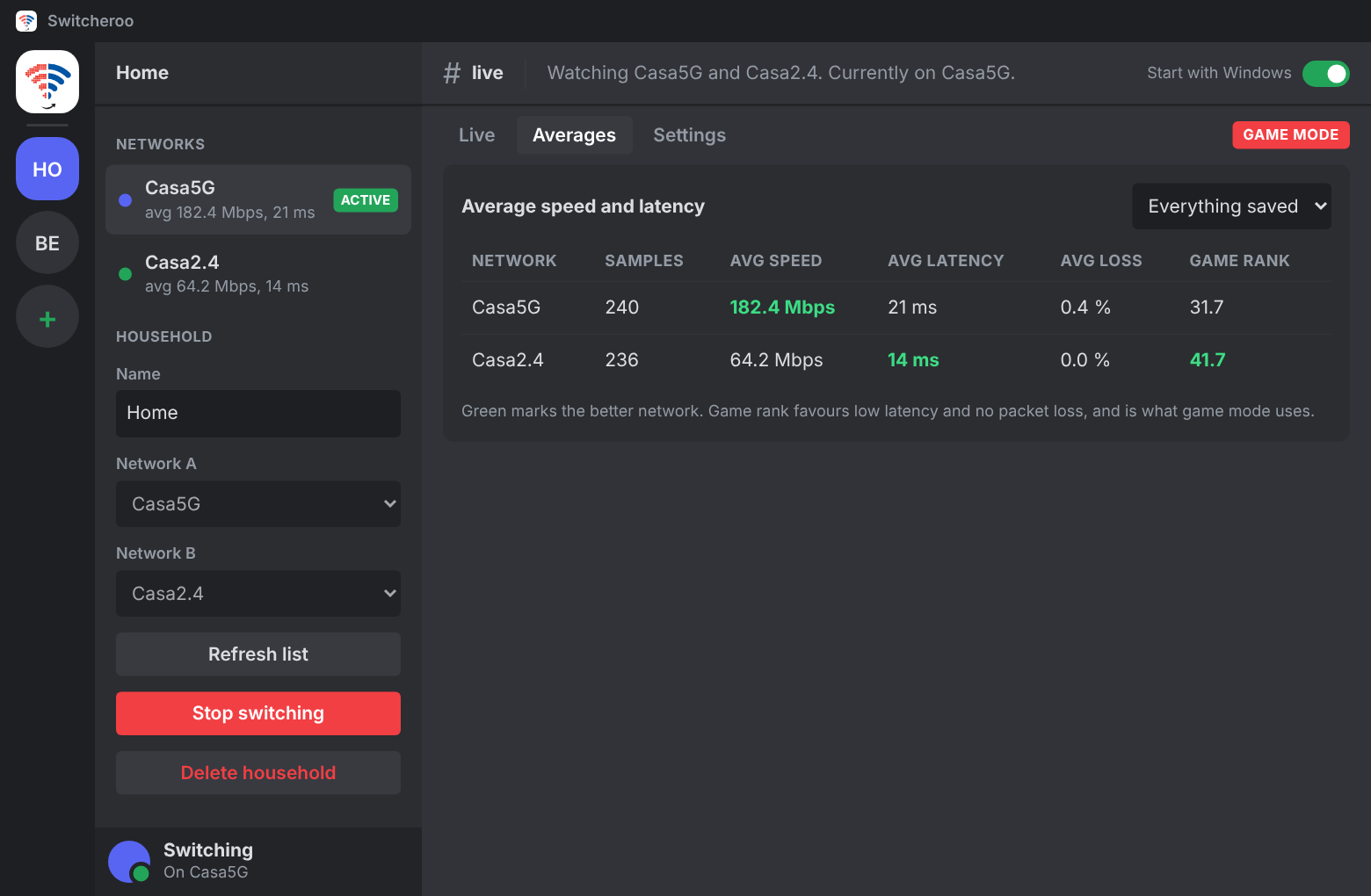
See the average speed, latency and packet loss of each network over the last day, the last week, or everything saved.
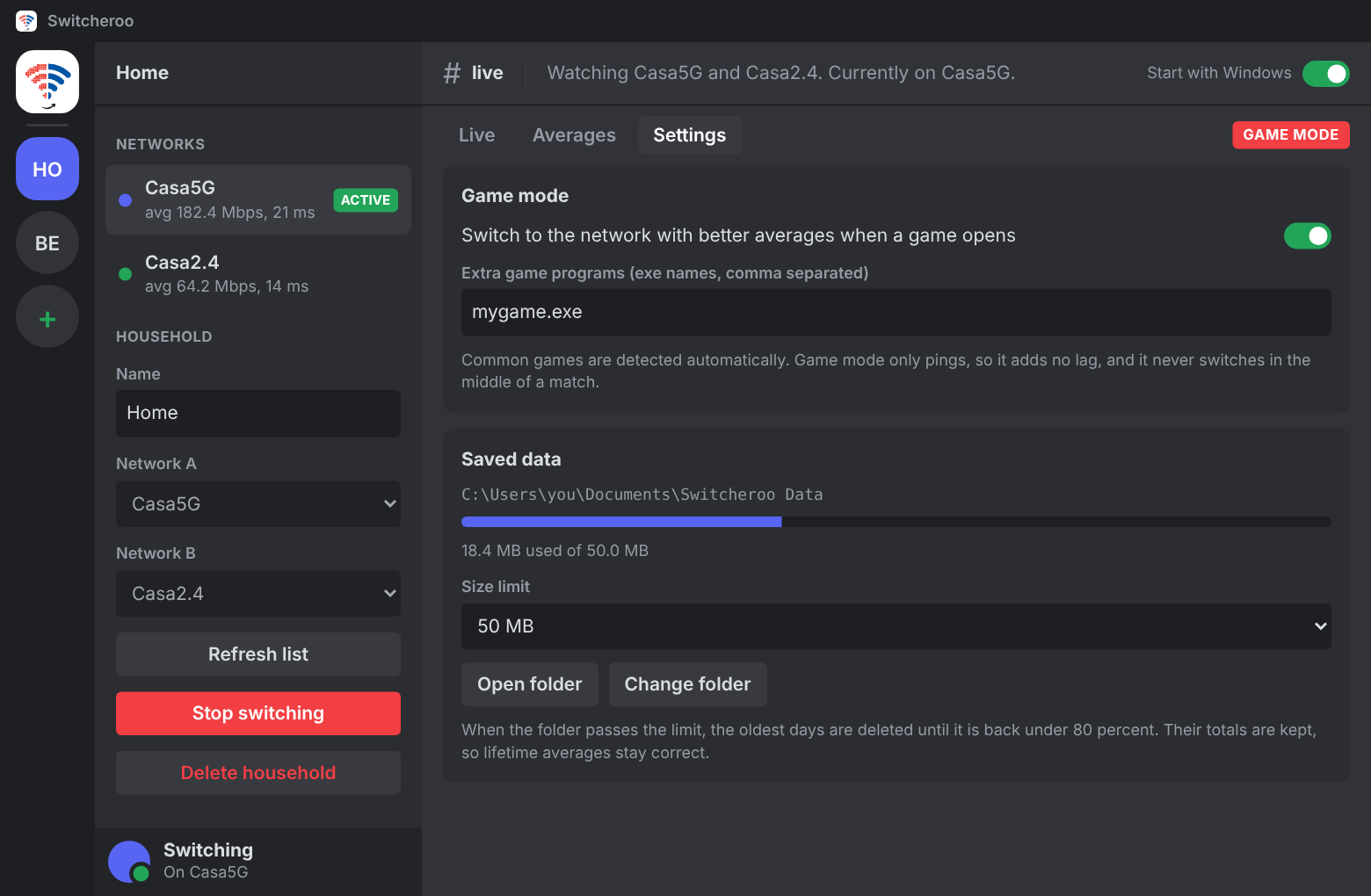
When a game opens, Switcheroo moves you once to the network with the better averages, ranked by latency and packet loss. While you play it only pings, so it never adds lag and never hops mid match.
Detected by name: Valorant, Counter-Strike 2, Fortnite, League of Legends, Dota 2, Rocket League, Overwatch, Apex Legends, GTA V, Rainbow Six Siege, Elden Ring, Destiny 2, PUBG, Warframe, Cyberpunk 2077, Rust, Genshin Impact, World of Warcraft, Final Fantasy XIV, Roblox, Marvel Rivals, Deadlock, EA Sports FC, Helldivers 2, Battlefield, Call of Duty, Escape from Tarkov and more. Add any other program yourself.
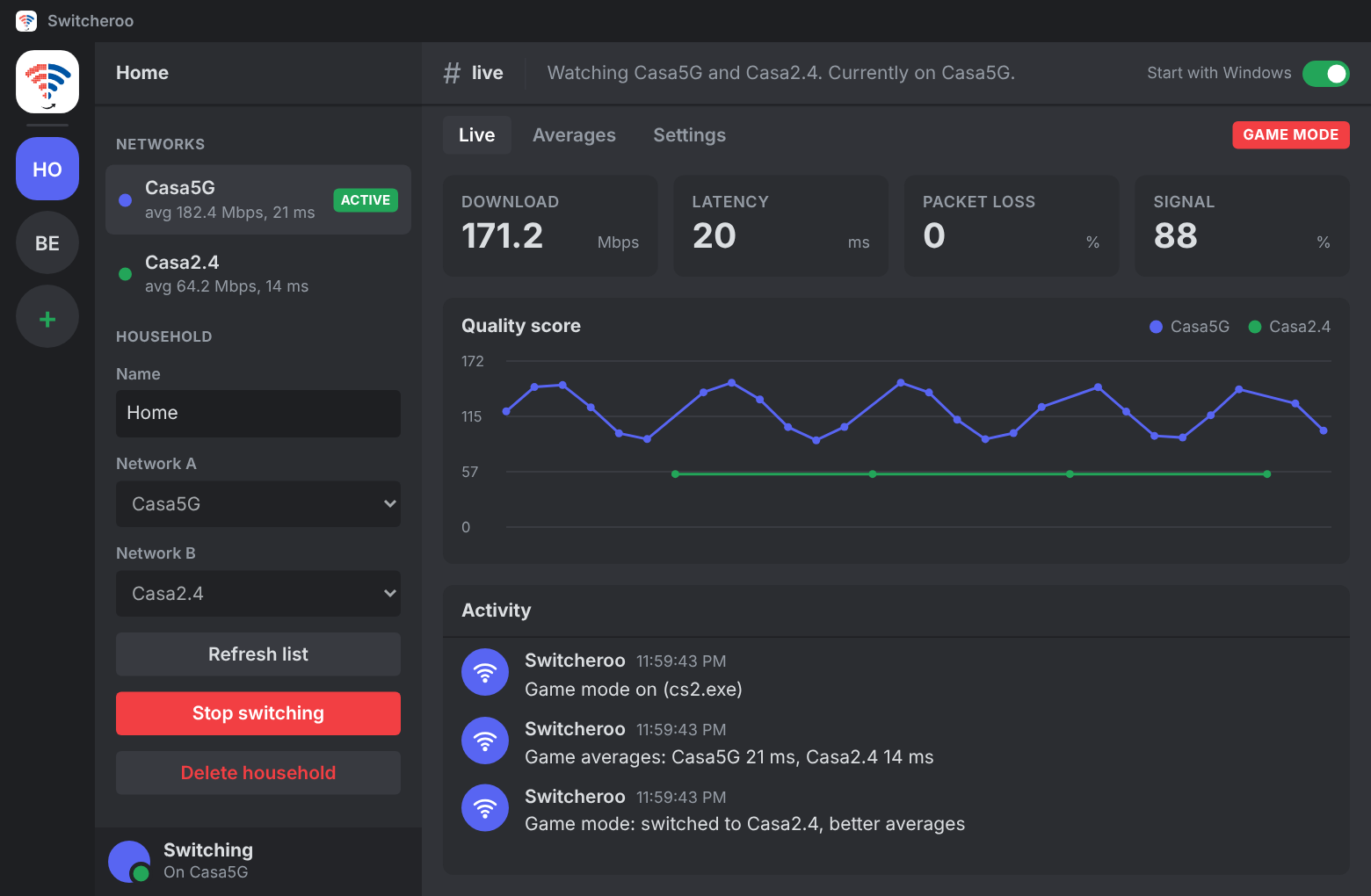
Add a household for each place you live, each with its own 5G and 2.4G pair. When your PC joins a network from another household, Switcheroo follows.
Every measurement is saved to a folder you choose. When it passes the size limit, 50 MB by default, the oldest days are deleted and their totals are kept, so averages stay right.
New versions download quietly from GitHub and install the next time you quit. You never hunt for an installer twice.
The video buffers. You pick a network by hand. Then it happens again.
It measures every 30 seconds and moves you when the other network is 25 percent better.
Which Windows does it need? It is built for Windows 11.
Do both networks have to be saved in Windows? Yes. Connect to each one once, then pick them in the app.
Will it interrupt me? Your PC has one Wi-Fi adapter, so it can only be on one network at a time. Every 4 minutes it hops to the other network for a few seconds to test it, then returns unless the other one is clearly better. In game mode it does not hop after the first choice.
How much data does it use? About 2 MB every 30 seconds for the speed check, from Cloudflare. Game mode only sends small pings.
Does it cost anything? No. It is free and open source under the MIT licence.
Why does Windows warn me? The installer is not code signed yet, so SmartScreen may ask you to confirm. The full source is public on GitHub if you want to check it.
What does it send out? Pings to Cloudflare and Google DNS, the 2 MB speed download from Cloudflare, and a check for new versions on GitHub. Your measurements stay on your PC.
Can I use it at two homes? Yes. Add a household for each, each with its own pair of networks.
How do I stop it? Press Stop switching in the app, or pause it from the tray icon menu.
Which games work? Most popular ones are detected by name, and you can add any program in Settings.
Download the installer, pick your two networks and press Start switching.